
News & Events
How to Start Revit project from scratch: Beginner’s Guide
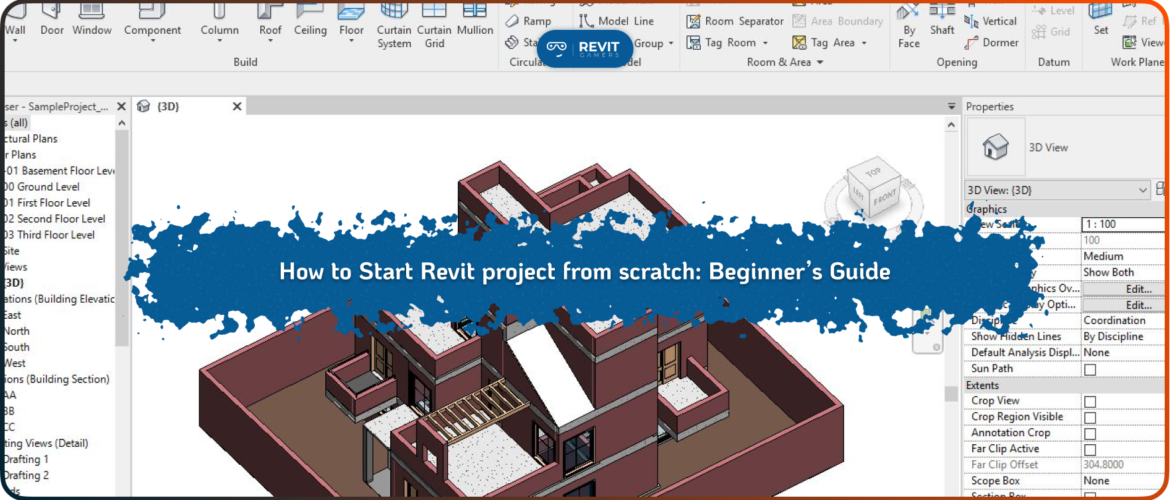
When you start Revit project from scratch, the way you set up the first steps will shape the quality and efficiency of everything that follows. Revit is not just a drafting tool—it’s a Building Information Modeling (BIM) platform, meaning every element you add contains data that can be used later for design, documentation, and construction. For beginners, it can feel overwhelming to face an empty workspace, but the process becomes manageable if approached in the right order.
The key is to begin with a clear structure: choosing the correct template, setting project units, establishing levels, and creating grids. With these foundations in place, you can confidently move forward to add walls, floors, and other elements without chaos or confusion. This guide is designed to walk you step-by-step through those essentials so that your very first project is not only accurate but also professional in presentation. Starting right makes learning smoother and projects more reliable.
Learn more: Revit Classes Comparison: In-Person vs Online with Visuals
Revit Gamers is offering
The most efficient
& market's only animated Revit training
Learn More
Choosing the Right Template for Your Project
The first decision when you start Revit project from scratch is choosing the correct template. Templates are not just blank pages; they come preloaded with families, settings, and views tailored for different disciplines. For instance, an Architectural Template includes walls, doors, and room tags ready for design, while a Structural Template prioritizes beams, columns, and analytical tools. Mechanical and other discipline templates are also available, each streamlining tasks for that specific field.
Beginners often underestimate this step, but selecting the wrong template can create unnecessary hurdles later. For example, trying to work on an architectural plan in a structural template means you’ll constantly be adjusting settings or importing missing families. Instead, by picking the right template at the beginning, you align your project with the tools you’ll use most frequently. It ensures consistency across views and saves hours of manual setup. A solid start here creates a smoother workflow as you build out the rest of the project.
Setting Up Project Units and Levels
Once your template is chosen, the next step is configuring units and levels. If you want to start Revit project from scratch successfully, units must reflect the measurement system of your project. Revit allows customization of length, area, and volume units, ensuring dimensions align with regional or industry standards. For instance, architectural projects might use meters or feet depending on location, while interior detailing could demand millimeters for precision. Levels are equally critical. They act as vertical references for your design, defining floor heights, roof elevations, or basement depths. Without proper levels, you risk misaligned elements or inconsistent dimensions across drawings.
Beginners should create levels for each major story of the building and double-check alignment in elevation views. Once established, these levels automatically generate floor plans, saving time and maintaining accuracy. Think of units and levels as the skeleton of your project: once they’re set, everything else—from walls to furniture—fits into a logical, reliable framework.
Learn more: best pyRevit tools :Top 7 pyRevit Tools That Will Save You Time
Creating and Managing Grids
After units and levels, grids provide horizontal structure to your project. When you start Revit project from scratch, grids act like invisible guides that organize elements across your design. They are especially important for structural alignment, helping architects, engineers, and contractors communicate seamlessly. For example, placing columns directly on grid intersections ensures precision and coordination across disciplines.
Beginners should start by laying out simple, evenly spaced grids that correspond to the building’s footprint. Each grid can be labeled numerically or alphabetically, making it easier to reference during collaboration. In large projects, grids reduce errors by ensuring doors, walls, and structural elements all line up with consistent reference points. Adjustments are simple too: moving a grid automatically updates any connected elements, maintaining accuracy throughout. While grids may feel like extra setup work, they are invaluable for long-term efficiency. Without them, projects risk disorganization and misaligned geometry. By mastering grids early, you build habits that professionals rely on every day.
Revit Gamers is offering
The most efficient
& market's only animated Revit training
Learn More
Adding Core Building Elements
With your framework established, it’s time to model the building itself. When you start Revit project from scratch, adding walls, floors, and other core elements is where the design comes alive. Begin with walls, using your levels and grids as reference points. Revit allows different wall types—interior partitions, exterior walls with insulation, curtain walls—and each comes with embedded data for construction.
Next, add floors aligned with your levels. You can sketch boundaries directly in plan view, and Revit automatically generates 3D geometry. Don’t forget columns and structural supports if your design requires them. Once the structure is stable, you can insert openings like doors and windows. Revit families make this process intuitive, as each component snaps to walls and adjusts dimensions automatically. For beginners, the key is to work systematically: establish outer walls first, then internal divisions, followed by details like doors. This method avoids clutter and ensures that your model remains both organized and professional.
Working with Views and Sheets
Revit’s strength lies in its ability to generate multiple views from a single model. As you start Revit project from scratch, learning how to manage views ensures clarity and consistency. Each level automatically generates a floor plan, but you can also create 3D perspectives, elevations, and sections. Beginners should familiarize themselves with view properties, such as scale, detail level, and visibility settings.
These tools control how much information is displayed, keeping drawings readable. Sheets, on the other hand, are where documentation comes together. You can place floor plans, elevations, and 3D views on a sheet to prepare professional presentations. Establishing a naming convention for views and sheets early prevents confusion as the project grows. The beauty of Revit is that changes in the model automatically update across all views and sheets, eliminating repetitive editing. By organizing views thoughtfully, you not only make your project easier to navigate but also set the stage for polished, construction-ready documentation.
Learn more: Revit file too big: Why Is Your Revit File So Heavy? How to Optimize It
Applying Families and Components
Revit’s component library—known as Families—is the heart of customization. When you start Revit project from scratch, families allow you to add everything from doors and furniture to mechanical equipment. Each family is a parametric object, meaning its dimensions and properties can adapt to your project. For beginners, this flexibility can feel overwhelming, but it’s also what makes Revit powerful. To begin, explore the default families included with your template.
You can load additional ones as needed, either from Revit’s library or custom-created sources. Placing families is simple: select the component, click in your view, and it automatically aligns with host elements like walls or ceilings. Editing parameters, such as size or material, lets you customize without redrawing. Families not only enhance visualization but also enrich the BIM database with information about quantity, type, and material. By mastering families early, beginners can elevate their projects from simple shapes to realistic, data-rich models ready for analysis and presentation.
Best Practices for Saving and Collaboration
Even the most detailed project can be lost without proper saving habits. As you start Revit project from scratch, establish clear practices for file management. Always use descriptive names for files—avoid generic titles like “Project1”—so you can track progress over time. Regular saving is essential, and creating backup versions protects you from data loss. Revit also supports worksharing, which allows multiple users to collaborate on the same model. Beginners may not need this feature immediately, but understanding its basics is helpful. Worksharing creates a central file, and each team member works on a local copy, synchronizing changes as needed.
This ensures consistent updates across the project. Even if working solo, developing habits like saving incrementally and using folders for organization builds professionalism. Remember, collaboration in BIM isn’t just about design—it’s about managing information effectively. Good saving and sharing practices keep projects smooth, prevent errors, and ensure that your hard work is never wasted.
Learn more: Reset Revit UI: Bring Back Your Lost Panels Easily
Conclusion: Building Confidence with Your First Revit Project
Starting your first project can feel intimidating, but by breaking it down step by step, the process becomes manageable. When you start Revit project from scratch, success depends on laying the groundwork properly: choosing the right template, defining units and levels, creating grids, and then carefully adding elements.
With views, sheets, and families in place, your design takes shape not just visually but as a complete BIM model rich with data. Along the way, adopting best practices for saving and collaboration prepares you for more advanced projects. Remember, the goal of your first project isn’t perfection—it’s building confidence with the software and understanding its workflow.
Start small, practice consistently, and expand your skills as you grow more comfortable. Every professional once began exactly where you are now, facing an empty Revit screen. By following this beginner’s guide, you’ve already taken the first step toward creating reliable, professional projects with confidence.