
News & Events
Fix Revit Errors: Solve Crashes, Sync Issues & File Problems in Revit
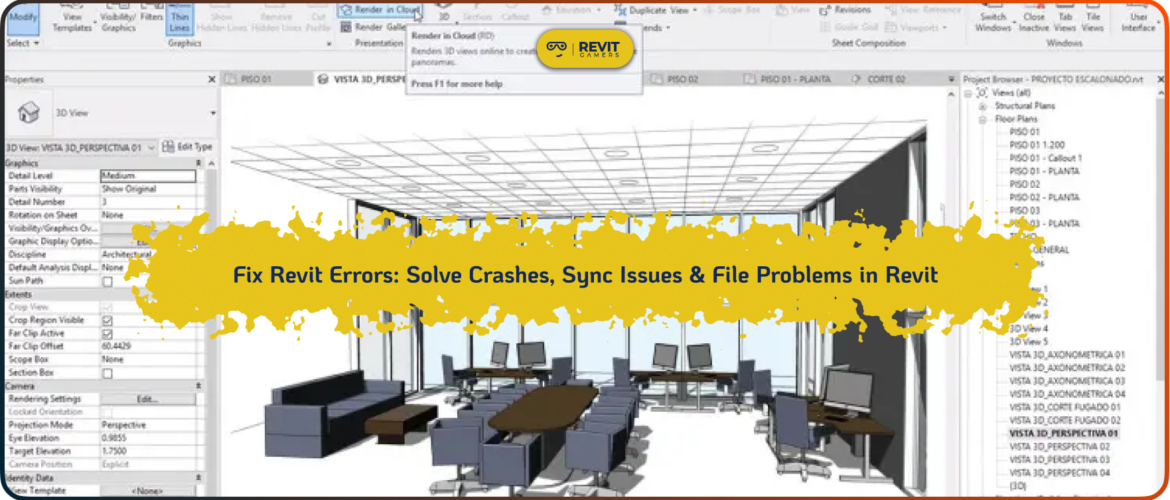
When Revit starts freezing, crashing, or throwing unexpected errors in the middle of a project, it’s not just frustrating it can completely disrupt your workflow and put your entire project timeline at risk.
In real-world BIM workflows, even a small error can lead to:
- corrupted project files
- lost work that cannot be recovered
- broken families or views
- delays in submissions and deadlines
Most users try random fixes, restart the software, or search for scattered solutions online — which often makes the problem worse or wastes valuable project time.
That’s why understanding the root cause of Revit errors is more important than just applying quick fixes.
In this guide, you’ll learn how to identify the most common Revit issues and apply reliable solutions that actually work in real project environments not just theory.
Learn more:
If your projects are frequently running into setup or workflow issues, it may be a sign that your Revit foundation needs improvement:
Revit Project Setup Best Practices
Revit Gamers is offering
The most efficient
& market's only animated Revit training
Learn More
Common Revit Errors and What Causes Them
Revit errors often look random at first, but in reality, most of them come from a few predictable system-level issues. The problem is that without understanding these patterns, users end up applying random fixes that don’t address the real cause.
In real project environments, Revit issues usually fall into a few critical categories:
Performance and freezing issues
Revit may stop responding during file opening, navigation, or model updates. This is often caused by heavy models, inefficient project setup, outdated graphics drivers, or overloaded families. These issues tend to worsen over time if the project structure is not optimized.
Startup crashes
Unexpected crashes when launching Revit are commonly linked to incompatible add-ins, corrupted user profiles, or incorrect installation configurations. These are often misdiagnosed, leading users to reinstall the software repeatedly without solving the root problem.
Synchronization and save errors
When working with central models, sync failures can occur due to unstable network connections, permission conflicts, or improper worksharing setup. These errors can directly affect collaboration and project continuity.
Graphics and display issues
Problems such as black views, flickering elements, or missing geometry are typically related to GPU conflicts, driver issues, or incorrect hardware acceleration settings.
Most users try to fix these issues one by one without understanding the underlying system behavior of Revit — which leads to repeated errors and wasted time.
That’s why structured troubleshooting is essential. Instead of reacting to errors, you need a workflow that helps you identify the root cause and prevent the problem from recurring.
Learn more: The BIM Implementation Process: A Comprehensive Guide
Fix #1: When Revit Is Not Responding
The “Revit Not Responding” issue is one of the most stressful problems users face during active project work. It often appears at the worst possible time — while opening large models, switching between views, or executing heavy operations — making it feel like the entire workflow has completely stalled.
In most cases, this issue is not random. It is usually a symptom of deeper system-level problems such as large unoptimized files, memory overload, background processes competing for resources, or underlying model corruption.
While it can be tempting to force close Revit immediately, doing so without understanding the cause can sometimes lead to data loss or file instability.
Instead, follow a structured recovery approach:
1. Confirm whether Revit is actually frozen
Before taking any action, wait a moment and check if the software is still processing a command. Complex operations with linked models or heavy geometry can temporarily freeze the interface.
2. Check system resource usage
Open Task Manager and monitor CPU and RAM usage. If Revit is still actively consuming resources, it is usually better to wait rather than terminate the process.
3. Identify system overload
Close unnecessary background applications that may be competing for memory. Revit performance is highly sensitive to available system resources, especially in large BIM projects.
4. Use audit mode carefully
When reopening the file, enable the “Audit” option. This helps detect and repair internal inconsistencies in the model that may be contributing to instability.
5. Isolate the model if needed
If working with a central model, consider creating a detached copy. This can help bypass synchronization-related issues that often trigger freezing.
6. Optimize the file environment
Remove unnecessary links, unused views, and excess geometry. Over time, unoptimized models become a major cause of performance degradation.
Learn more: Temporary Hide, Isolate Elements
Important insight:
If you find yourself repeatedly facing this issue across different projects, it usually indicates a deeper workflow or setup problem — not just a temporary software glitch.
In professional BIM environments, these issues are typically prevented through proper project setup, model optimization strategies, and structured Revit workflows rather than repeated manual fixes.
Revit Gamers is offering
The most efficient
& market's only animated Revit training
Learn More
Fix #2: Graphics and Display Issues
Graphics and display problems in Revit can appear in many forms — from minor visual glitches and flickering elements to completely black views or unusable workspaces. While they may seem like isolated issues, they are often symptoms of deeper system-level configuration problems.
In most cases, these issues are not caused by Revit itself, but by a combination of graphics hardware settings, outdated or incompatible drivers, and incorrect hardware acceleration configuration. In large BIM projects, even small display inconsistencies can significantly disrupt modeling accuracy and workflow efficiency.
If left unresolved, these issues can lead to:
- incorrect visual representation of models
- hidden or missing elements during coordination
- misinterpretation of design data
- reduced performance during navigation and rendering
Structured troubleshooting approach:
1. Adjust hardware acceleration settings
Go to Revit Options > Graphics and toggle hardware acceleration OFF.
In many systems, especially with unstable GPU drivers, this can immediately improve stability and eliminate visual glitches.
2. Update graphics drivers correctly
Always install the latest certified drivers directly from the GPU manufacturer (NVIDIA or AMD).
Generic Windows updates often do not provide stable performance for BIM workflows.
3. Assign Revit to the correct GPU
Revit performs significantly better on discrete GPUs.
In NVIDIA Control Panel (or equivalent), ensure Revit is set to use the high-performance graphics processor.
4. Reset corrupted UI configuration
In some cases, display issues are caused by corrupted interface settings.
Resetting Revit’s UI by removing the UIState.dat file in the AppData directory can restore normal behavior.
5. Disable conflicting add-ins
Rendering or visualization plugins can sometimes interfere with Revit’s native graphics engine, causing instability or display artifacts.
Important insight:
If you repeatedly encounter graphics or display issues across multiple projects or machines, the problem is often not just technical — it usually indicates an underlying mismatch between your Revit setup, hardware configuration, and workflow demands.
In professional BIM environments, these issues are typically prevented through standardized setup procedures, optimized system configuration, and consistent project environments rather than reactive fixes.
Learn more: Revit Architecture Crash Course
Fix #3: File Save, Open, and Sync Issues
Issues related to saving, opening, and syncing files in Revit are among the most critical problems in BIM workflows. Unlike visual glitches or temporary performance lags, these errors can directly impact project continuity, team collaboration, and data integrity.
In collaborative environments, especially when working with central models, even small misconfigurations can lead to serious consequences such as:
- lost work due to failed synchronization
- file version conflicts between team members
- corrupted central models
- broken collaboration workflows across multiple users
These issues are often not random. They usually stem from inconsistent setup practices, improper file handling, version mismatches, or unstable network environments.
Structured troubleshooting approach:
1. Central model best practices
Always open models using “Create New Local” to ensure proper file separation.
All team members must use the same Revit version to avoid compatibility issues.
Inconsistent file paths — especially in cloud or shared environments — are a common source of sync failures.
2. Save-related issues
Ensure proper write permissions for all project directories.
Avoid running Revit projects from restricted or unstable network drives when possible.
Temporarily disable antivirus or backup tools that may lock project files during save operations.
3. Open-related failures
Use the “Audit” function when opening files that show instability or unexpected behavior.
If add-ins are suspected, temporarily disable them to isolate the issue.
Backup folders (_backup) can often provide a stable recovery point.
Important insight:
If save, open, or sync issues occur repeatedly across projects or teams, the problem is rarely just technical. It usually indicates deeper workflow inconsistencies in project setup, collaboration structure, or file management standards.
In professional BIM environments, these issues are not solved ad-hoc. They are prevented through standardized workflows, strict file management protocols, and structured Revit setup practices.
Proactive Revit Troubleshooting Checklist
While most Revit issues are solved reactively after they occur, in professional BIM environments the focus is on prevention. However, it’s important to understand that basic checklists alone are not enough for complex real-world projects — they are only the first layer of system stability.
Here is a foundational daily routine that helps reduce common issues:
✅ Keep software and add-ins updated
Regular updates reduce compatibility issues and prevent unexpected crashes caused by outdated components.
✅ Clean temporary and cached files
Over time, Revit accumulates temporary data in directories like %LocalAppData%\Autodesk\Revit. Cleaning these periodically can improve stability.
✅ Use audit when working with large or shared models
The Audit function helps detect early signs of model inconsistencies, especially in collaborative environments.
✅ Avoid overloading views
Excessive elements, annotations, and unoptimized views can significantly degrade performance in large projects.
✅ Manage linked files carefully
Unnecessary or outdated links are a common source of performance issues and should be regularly reviewed.
✅ Maintain structured backups
Relying only on autosave is risky. Proper versioning strategy is essential in real project workflows.
✅ Free system resources during heavy tasks
Closing unnecessary applications helps Revit allocate enough memory for complex operations.
✅ Monitor warnings consistently
A high number of unresolved warnings is often an early indicator of deeper model issues.
Important insight:
This checklist represents only the baseline of Revit stability management. In real BIM workflows, problems are rarely caused by a single factor — they usually result from a combination of setup issues, modeling practices, and workflow decisions.
That’s why professional users don’t rely on isolated tips. They follow structured systems for project setup, error prevention, and workflow optimization.
Learn more :Free Revit Tutorial: How to Get Started Today
Revit Gamers is offering
The most efficient
& market's only animated Revit training
Learn More
When to Seek Professional Help
While many Revit issues can be resolved through structured troubleshooting, there are situations where problems persist despite repeated attempts to fix them. In these cases, continuing to experiment without a clear system can actually lead to wasted time, unstable models, or further project complications.
Recognizing when a problem has moved beyond basic troubleshooting is a critical skill in professional BIM workflows.
Signs that require expert-level support:
- Repeated crashes across multiple projects or file types
- Performance degradation after every software or plugin update
- Persistent errors that affect multiple users in a collaborative environment
- Central model corruption with no reliable recovery options
- Complex family or API-related issues that disrupt workflows
When these issues appear consistently, they are usually not isolated bugs — they indicate deeper system, setup, or workflow problems.
Important reality:
At this stage, trial-and-error troubleshooting is no longer efficient. Continuing without a structured approach often results in more time lost and increased risk to project stability.
In professional BIM environments, these situations are handled through experienced guidance, structured diagnosis, and targeted problem-solving workflows — not random fixes.
Get expert help when it matters most
If your troubleshooting process is not resolving the issue, getting expert support is often the fastest and safest path forward.
At Revit Gamers, we provide:
- 1-on-1 troubleshooting sessions for complex Revit issues
- Guided support for project-critical problems
- Workflow analysis to identify root causes, not just symptoms
Instead of spending hours chasing unpredictable errors, you can resolve them with a structured and reliable approach.
Final insight:
The cost of delayed resolution in Revit is not just time — it can affect project deadlines, team coordination, and overall model integrity.
Conclusion: The Fix Is in the System, Not Just the Errors
Fixing Revit errors is not just about applying isolated solutions — it’s about understanding the underlying system behind how Revit behaves in real project environments. Most issues, whether related to performance, file stability, or synchronization, are not random. They are patterns that emerge from workflow, setup, and model management decisions.
Throughout this guide, we explored some of the most common Revit problems and structured ways to approach them. However, in real-world BIM projects, troubleshooting is rarely this straightforward. Issues often overlap, escalate, and reappear if the underlying workflow is not properly structured.
The key takeaway
Knowing how to fix errors is useful — but knowing how to prevent them and manage Revit as a system is what separates beginners from professionals.
Without a structured approach, most users end up repeating the same cycle:
error → quick fix → recurrence → frustration
Building real control over Revit
At Revit Gamers, our focus is not just on fixing individual problems, but on helping you understand Revit as a complete system — so you can reduce errors, improve stability, and work more confidently on real projects.
Our training is designed to bridge the gap between basic troubleshooting and professional-level workflow managementFinal thought
The next time Revit throws a problem your way, the solution won’t just come from a single fix — it comes from understanding the system behind it.
Learn more :Top 5 Revit Training Tips for Architects