
News & Events
Revit Warnings Explained: What They Mean and How to Fix Them
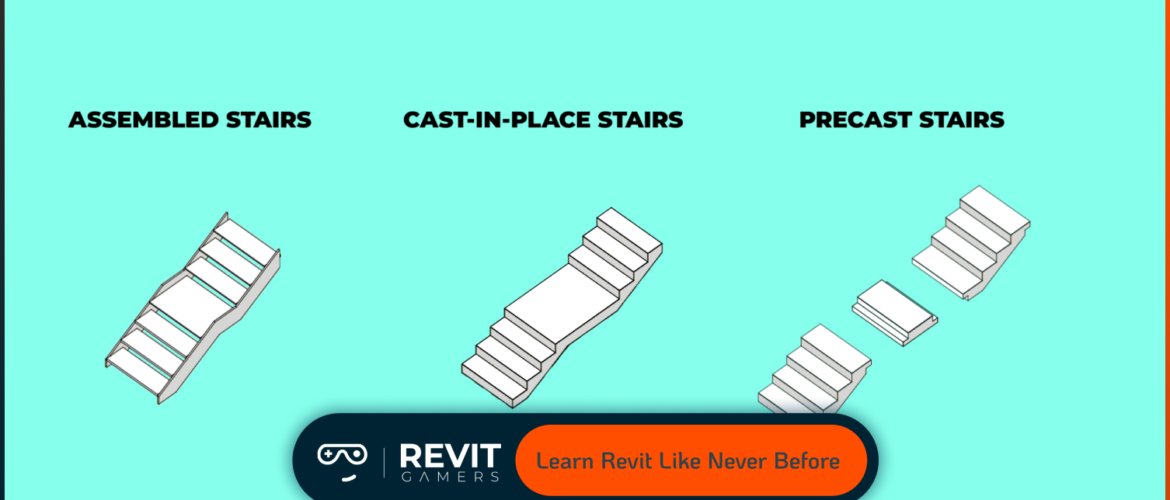
Revit warnings are alerts designed to help users identify potential issues in a model before they escalate into errors affecting documentation, schedules, or construction. They indicate inconsistencies, conflicts, or design assumptions that may compromise model accuracy or project coordination. Ignoring these warnings can lead to duplicate elements, misaligned geometry, inaccurate quantity takeoffs, or even crashes in large projects.
Warnings are common in multi-disciplinary environments, especially when linking files, importing CAD or IFC models, or copying elements between levels. They serve as a proactive tool for maintaining model health and ensuring reliable collaboration. Revit provides a Warnings dialog, where all active warnings are listed along with suggestions or references to the affected elements. However, the volume of warnings in complex projects can be overwhelming, requiring a systematic approach to review and resolution.
This article focuses on the most common Revit warnings, explains why they occur, and provides practical, step-by-step solutions. Each section targets a specific warning type, offering actionable advice for cleaning up the model efficiently. By following these strategies, Revit users can maintain accurate documentation, improve collaboration across teams, and prevent downstream issues, ensuring that models remain construction-ready and fully reliable.
Learn more: Learn Revit: Animated Course vs Traditional Tutorials 2025
Duplicate Elements Warnings
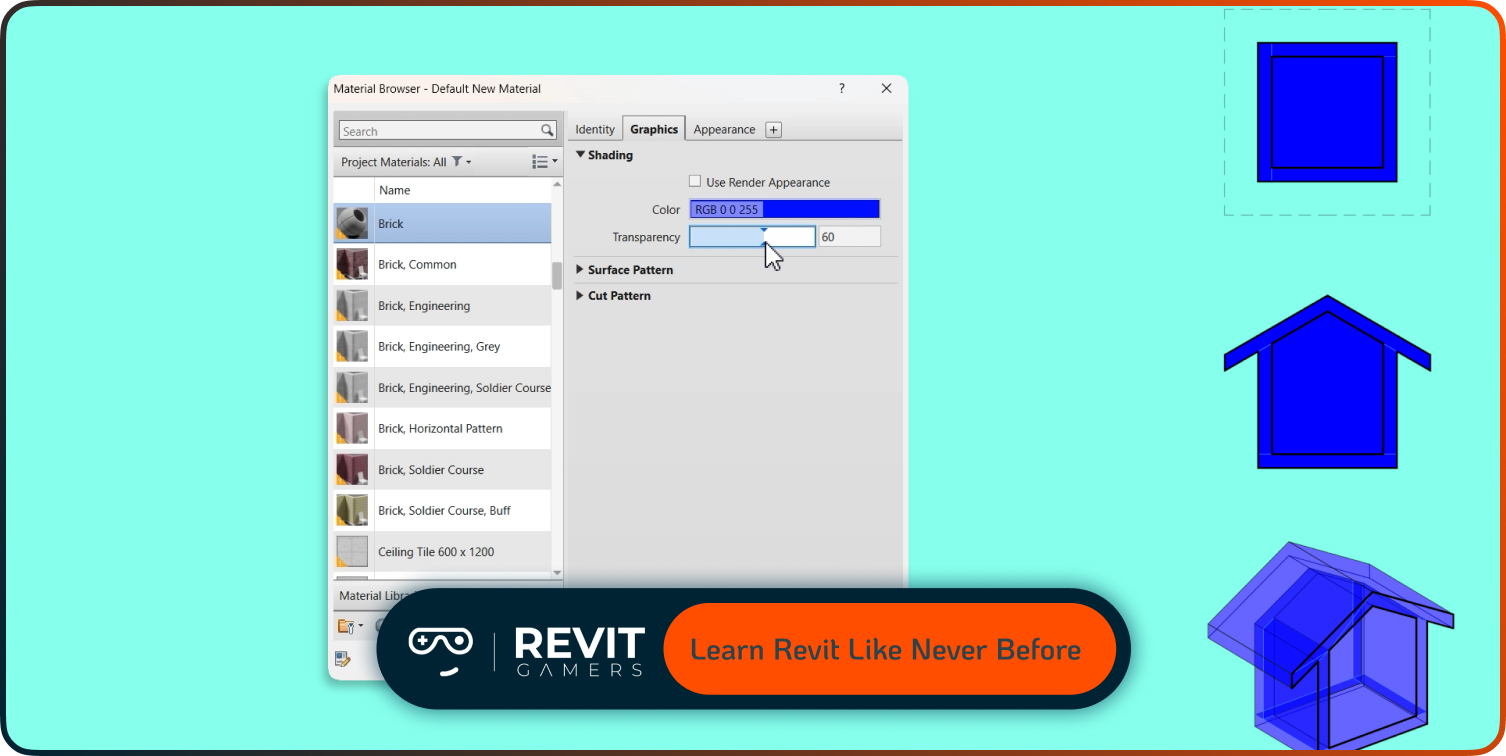
Duplicate elements warnings occur when two or more components occupy the same space. This is common in walls, doors, or imported CAD geometry, and often arises from copy-paste operations, linked files, or accidental duplication within a model. These warnings can affect quantity takeoffs, schedules, and clash detection, and may slow down the project.
To resolve duplicate elements, start with the Warnings dialog in Revit. Identify duplicates and verify which element should remain. Tools like Ideate Explorer or temporary isolation help locate hidden or overlapping components. In linked files, check whether duplicates were introduced via import or copy, and clean them up in the source file when possible.
Preventing duplicates requires disciplined workflows: avoid copy-pasting large groups without verification, manage linked files consistently, and audit the model regularly. Removing duplicates promptly not only clears warnings but also ensures accurate scheduling, reduces the risk of conflicts, and keeps model performance optimal. By maintaining a clean model, teams avoid downstream issues that could impact construction documentation or coordination with consultants.
Unjoined/Disconnected Geometry Warnings
Unjoined or disconnected elements, such as walls, floors, roofs, or beams that fail to intersect correctly, frequently trigger Revit warnings. Even small gaps or misalignments can cause these alerts, affecting clash detection, structural analysis, and quantity calculations. Schedules or 3D visualizations may also reflect inaccuracies if disconnected geometry persists.
The solution begins with identifying affected elements via the Warnings dialog or Visual Warnings tool, which highlights problematic geometry. Use Join Geometry for architectural components, or adjust endpoints and levels to ensure proper connections. For MEP systems, verify that connectors align and ducts or pipes meet target elements correctly. Temporary reference planes or snaps can help maintain precise alignment during adjustments.
Preventing these warnings requires disciplined modeling practices. Keep consistent levels and grids, validate connections after importing or linking files, and regularly check the model for unjoined elements. Properly connected geometry ensures a reliable, parametric model, accurate quantity schedules, and effective clash detection. This strategy also improves overall project performance and maintains a professional, construction-ready model.
Constraint & Locked Elements Warnings
Constraints and locked elements generate warnings when relationships between components are broken or conflict with other model elements. For example, if a wall is pinned to a level that is moved or deleted, Revit flags it. Similarly, overlapping constraints, locked dimensions, or misaligned parametric relationships trigger alerts that affect element behavior.
Resolving constraint warnings involves identifying affected elements and temporarily unlocking or unpinning them. Check relationships, reassign constraints logically, and ensure elements remain properly aligned. Avoid creating redundant constraints, and regularly validate parametric relationships after major edits.
Preventing these warnings requires establishing modeling standards: lock only essential elements, use stable reference planes, and coordinate changes across linked files. In multi-disciplinary projects, communicate constraint rules among team members to avoid accidental conflicts. Properly managed constraints reduce errors in drawings and schedules, improve model performance, and prevent cascading issues in linked files.
Learn more: Revit Classes Comparison: In-Person vs Online with Visuals
Overlapping Elements or Faces Warnings
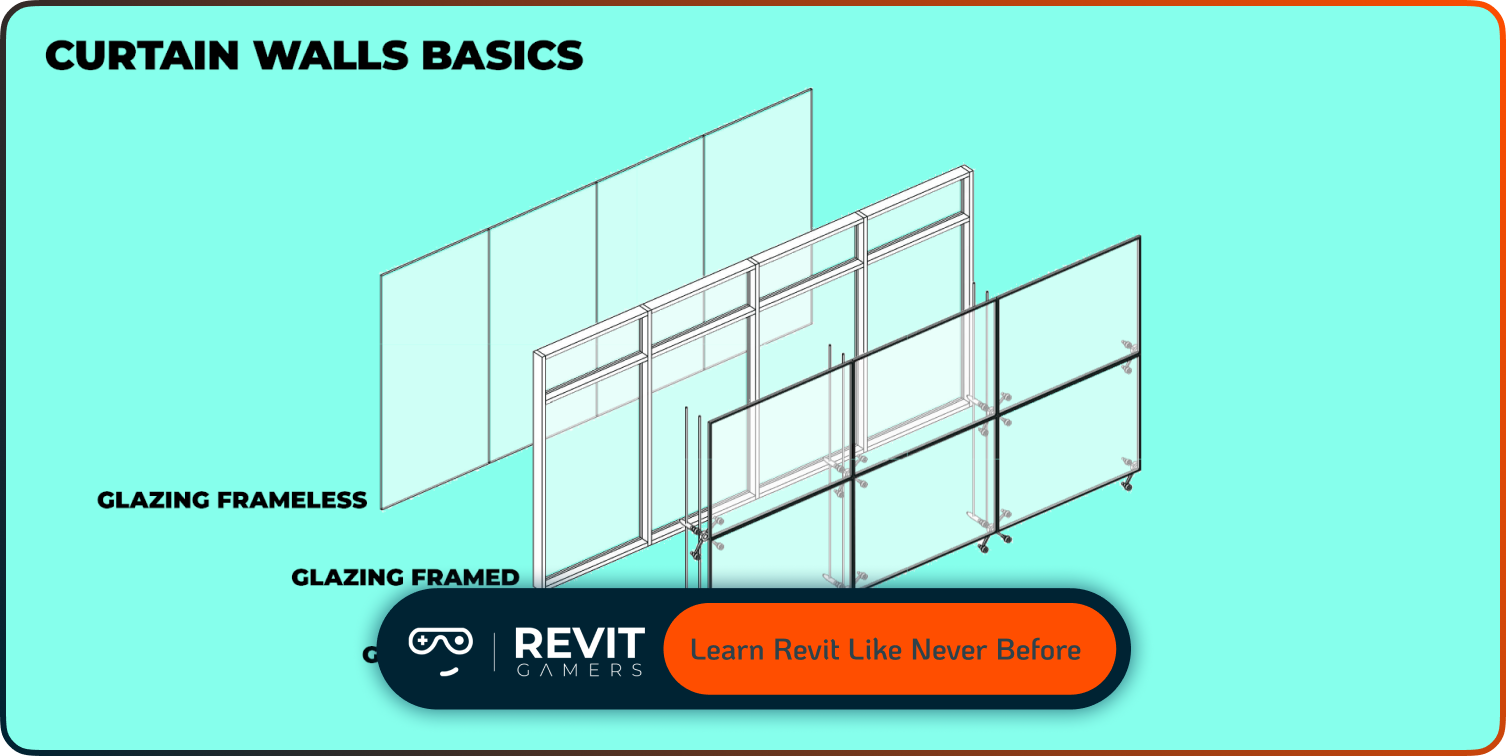
Overlapping faces or elements, such as two walls occupying the same plane or a floor intersecting a beam, are common in Revit projects, especially during import or copy operations. These warnings affect rendering, schedules, clash detection, and structural analysis, and may slow the model significantly.
Fix overlaps by carefully inspecting the Warnings dialog and using tools like Section Views or temporary isolation to locate conflicts. Adjust geometry using offsets, move or join elements appropriately, and validate connections. In multi-level projects, ensure workplanes and levels are aligned to prevent repeated overlaps.
Preventative measures include disciplined modeling, verifying element placement after imports or copies, and avoiding unnecessary duplication. Resolving overlapping warnings maintains model integrity, ensures accurate construction documentation, and improves collaboration with consultants and MEP or structural teams.
Warnings from Linked Revit Files
Linked files often introduce warnings that propagate into the host model. Common issues include duplicate elements, misaligned levels, unjoined geometry, or conflicting constraints. These can affect schedules, clash detection, and overall performance.
To fix linked file warnings, open the linked model and resolve issues at the source whenever possible. Align levels, grids, and worksets between host and linked models. Temporarily unload links to isolate problems or reduce warning clutter. Maintaining consistent naming conventions and reference alignment across all models prevents recurring warnings.
Regular team coordination is essential. Addressing linked file warnings proactively reduces errors in the main model, preserves schedules, and ensures the host model remains clean, reliable, and high-performing for construction documentation.
Imported CAD / IFC Warnings
Importing CAD or IFC files can generate warnings due to excessive detail, duplicate geometry, or layer inconsistencies. Overlapping lines, blocks, or annotations may conflict with existing Revit elements.
Resolve these warnings by cleaning up the imported file: remove unnecessary layers, simplify geometry, and convert CAD lines to Revit elements when needed. For IFC files, ensure proper classification and connectivity. Use Import Units settings to align scales and positioning accurately.
Preventive strategies include standardizing import protocols, only importing necessary geometry, and auditing files before placement. Early cleanup ensures warnings do not cascade, maintains model performance, and keeps the Revit project parametric and accurate.
Learn more: Is Revit Hard to Learn? (And How Online Courses Make It Easy)
Revit Warnings Explained: Best Practices to Minimize Warnings
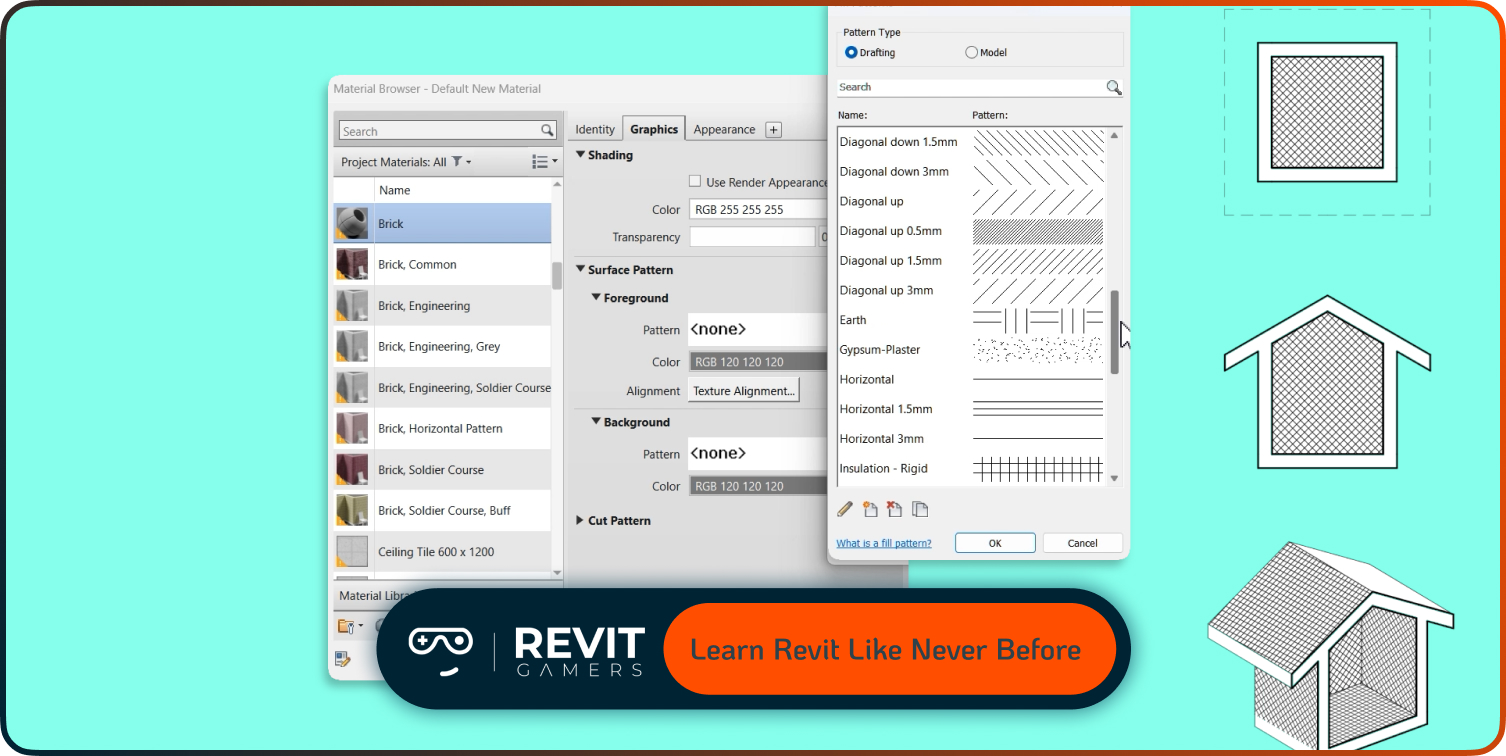
Preventing warnings is more effective than fixing them after they accumulate. Establish modeling standards for families, constraints, worksets, and links. Use templates with predefined visibility, annotation, and naming conventions. Regularly audit models with Revit’s Warnings dialog or plugins like Ideate Explorer.
Coordinate across disciplines, validate imported files before placement, and document workflows to prevent duplicate elements or misalignments. Educate team members about constraint usage, joining elements, and proper linking.
By following these best practices, the number of warnings is minimized, model performance improves, and construction-ready documentation becomes more reliable. Proactive management of Revit warnings ensures long-term project stability and fosters efficient collaboration.
Leave a Reply
You must be logged in to post a comment.