
News & Events
Revit Linked Files Strategy: How to Link CAD & Revit Files Without Breaking Your Model
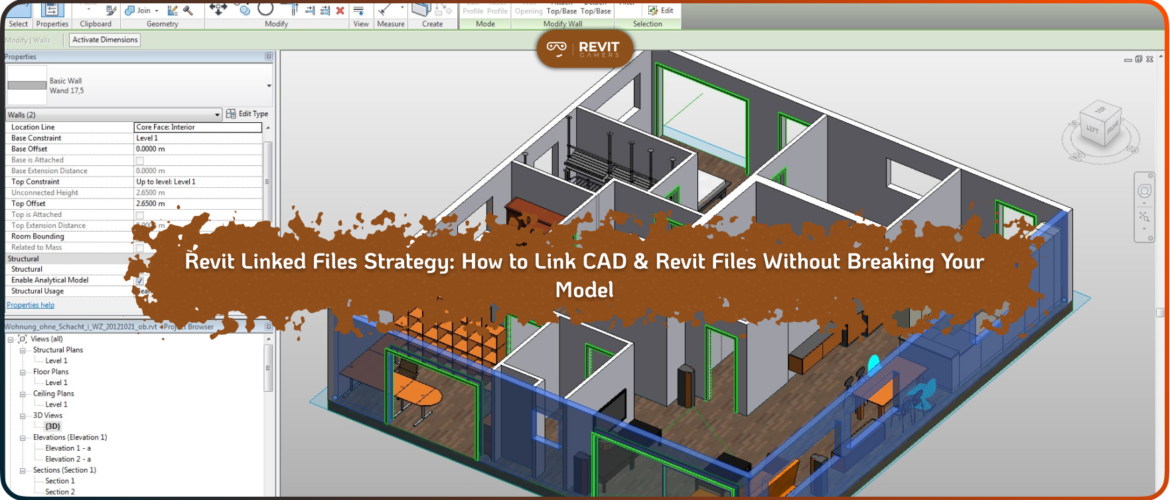
As Revit projects grow in size and complexity, file structure becomes more important than modeling skill. Many teams assume linking files is simply a technical step, but in reality, it is a strategic decision. Without a clear Revit linked files strategy, models become slow, unstable, and difficult to coordinate.
In small projects, a single model may work efficiently. However, as the project moves into design development and documentation phases, file size increases dramatically. More views, more details, more sheets, and more team members create pressure on the model. If linking is handled randomly, performance drops and coordination errors multiply.
A professional approach to linked files is not about splitting everything into separate disciplines blindly. It is about understanding project scale, development phase, and collaboration structure. The goal is to maintain performance while ensuring flexibility.
A structured linking strategy allows teams to:
- Improve model performance
- Enable simultaneous teamwork
- Reduce file corruption risk
- Maintain documentation control
In large-scale BIM environments, linked file management is not optional. It is a foundational layer of project stability.
Learn more: Revit vs AutoCAD 2025: Which Is Worth Learning?
Project Segmentation Strategy – Divide by Zones, Not Just Disciplines
One of the biggest mistakes in large BIM projects is dividing files only by discipline: architecture, structure, and MEP. While discipline separation may work in coordination-heavy environments, it is not always the most efficient structural approach.
A smarter Revit linked files strategy focuses on physical segmentation of the building. Instead of separating only by trade, projects can be divided by:
- Towers
- Podiums
- Basements
- Site packages
- Building zones
This zoning approach becomes increasingly important as projects grow in size. For example, a small residential building may operate successfully with one central model. A multi-tower development, however, benefits from tower-based model segmentation linked into a central coordination file.
As the project transitions from conceptual design to documentation, segmentation often increases. Documentation requires more detailed modeling, which increases file size and slows performance. Dividing by zones keeps models lighter and easier to manage.
The key principle is scalability. Your segmentation strategy should evolve as the project grows. A well-planned structure ensures that performance remains stable while collaboration becomes more efficient.
Main Model Architecture – The Role of the Central File
In a professional Revit linked files strategy, every segmented model connects to a central Main file. This Main file acts as the coordination and documentation hub.
Its primary responsibilities include:
- Hosting sheets
- Managing documentation views
- Controlling visibility
- Coordinating linked models
- Serving as the reference environment
The Main file should not contain heavy modeling from all segments. Instead, modeling happens in individual zone or package files, which are then linked into the Main model. This separation ensures that documentation can proceed without overloading a single file.
By isolating modeling work from sheet production, teams reduce the risk of file corruption and improve workflow clarity. When updates are made in a segmented file, the Main file simply reloads the link.
This architecture creates a clean hierarchy:
Segment Models → Linked into Main → Documentation Output
Without this hierarchy, projects quickly become disorganized. A properly structured Main file is not just a container—it is the backbone of coordination and control.
Phase-Based Linking Evolution – Adjusting Strategy Over Time
A static file structure rarely survives the full lifecycle of a project. A strong Revit linked files strategy adapts based on development phase.
During the Sketch or Concept phase, models are lighter and simpler. Teams prioritize speed and iteration. At this stage, fewer linked files may be sufficient.
In the Design Development phase, complexity increases. Façades become detailed, structural systems are refined, and coordination intensifies. Segmentation becomes more necessary. Towers, podiums, or site components may be separated into individual files.
By the Documentation phase, the model reaches peak density. Sheets, annotations, details, and package-based outputs demand performance stability. At this point, additional subdivision may be required—such as separating interiors, façades, or specific documentation packages.
The strategy must evolve intentionally, not reactively. Waiting until performance collapses is too late. Proactive segmentation ensures that as the project grows, the file structure remains efficient.
Professional BIM teams anticipate this evolution from the beginning and plan their linking framework accordingly.
Learn more: Revit Architecture Crash Course
Worksets & Link Control Strategy – Managing Visibility and Performance
Linking files is only half the strategy. Controlling them properly is what maintains performance. A mature Revit linked files strategy integrates structured Workset organization.
Worksets allow teams to manage:
- Visibility
- Loading behavior
- Editing permissions
- Performance optimization
Linked files should not be placed randomly in default Worksets. Instead, dedicated Worksets should be created specifically for:
- Revit Links
- CAD Links
- Site elements
- Structural components
- Interior packages
Numbered or logically grouped Worksets improve clarity and allow selective loading. For example, large linked models can be unloaded in working views to improve speed while remaining active in coordination views.
This structured control ensures that team members understand where elements belong and how links are managed. Without Workset discipline, even a well-segmented model can become chaotic.
Clean linking plus structured Worksets equals controlled performance.
CAD Linking Best Practices – Control External Data Before It Controls You
A critical part of any Revit linked files strategy is how CAD files are handled. Many performance issues begin with improperly managed DWG files. When CAD data is imported instead of linked, unnecessary layers, blocks, and linework become permanently embedded in the model, increasing file size and slowing performance.
The professional approach is simple: always link, never import—unless absolutely necessary. Linking keeps the external file separate and controllable. If the CAD file updates, you can reload it. If it becomes unnecessary, you can unload or remove it without damaging the model.
Before linking, clean the CAD file. Remove unused layers, purge blocks, and simplify geometry. The lighter the file, the better Revit performs. Place all CAD links inside a dedicated Workset so they can be turned off in working views.
Avoid exploding CAD files inside Revit. Exploding creates unmanaged linework and dramatically increases model weight. CAD links should function strictly as references—not as modeling foundations.
A disciplined CAD linking approach protects your model from external clutter and preserves long-term performance stability.
Coordinate Management – Define the System Before Linking Begins
Even the most organized file structure can fail without proper coordinate control. A strong Revit linked files strategy always begins with a clear coordinate framework.
Before linking any file, teams must define:
- Project Base Point strategy
- Survey Point alignment
- Shared Coordinates workflow
- Ownership responsibility for coordinate control
Coordinate decisions should be made at the start of the project—not during documentation. Changing coordinates mid-project can cause misalignment, broken links, and coordination conflicts.
In multi-building or multi-tower projects, shared coordinates ensure that every segmented model aligns correctly within the Main file. This is especially critical when linking structural or MEP models produced by external consultants.
One team—usually BIM management—should control the master coordinate system. Without clear ownership, small adjustments can create large downstream errors.
When coordinate logic is established early, linking becomes predictable and stable. When ignored, even simple reloads can create confusion. Good coordination is invisible when done correctly—but catastrophic when neglected.
Learn more: Revit file too big: Why Is Your Revit File So Heavy? How to Optimize It
Common Mistakes That Break Revit Models
Many performance disasters are not caused by software limitations but by weak linking strategy. Understanding common mistakes helps prevent long-term damage.
A frequent issue is overloading a single model with all disciplines and zones combined. As documentation grows, file size becomes unmanageable. Another mistake is creating too many unnecessary links without logical segmentation, leading to confusion and coordination delays.
Improper Workset usage is also common. When linked models are placed in default Worksets without structure, visibility control becomes chaotic. Teams struggle to isolate elements, and performance suffers.
Importing CAD instead of linking is another major problem. Once imported, cleanup becomes difficult and file size increases permanently.
Late coordinate adjustments can also destabilize a project. When shared coordinates shift mid-phase, annotation and documentation alignment may break.
A successful Revit linked files strategy avoids reactive decisions. It anticipates complexity and structures the model before problems appear. Prevention is always easier than repair.
Professional Checklist – A Clean Revit Linked Files Strategy Framework
To ensure your Revit linked files strategy remains effective, use this professional checklist:
✔ Segment models based on building zones or logical packages
✔ Establish a central Main file for coordination and documentation
✔ Avoid heavy modeling inside the Main file
✔ Create dedicated Worksets for Revit and CAD links
✔ Clean CAD files before linking
✔ Link instead of import whenever possible
✔ Define shared coordinates at project start
✔ Assign coordinate control responsibility
✔ Adapt file segmentation as the project evolves
✔ Regularly audit unused links and Worksets
This framework supports scalability. Whether the project is small or multi-tower, the structure remains adaptable.
A clean linking strategy does not just improve performance—it improves clarity. Team members understand where modeling happens, where documentation lives, and how coordination flows.
When linking is intentional, models stay stable. When linking is careless, instability spreads.
A professional BIM workflow is built on structure—and structure begins with strategy.
Leave a Reply
You must be logged in to post a comment.