
News & Events
Revit Family Creation: Step-by-Step Guide for Beginners
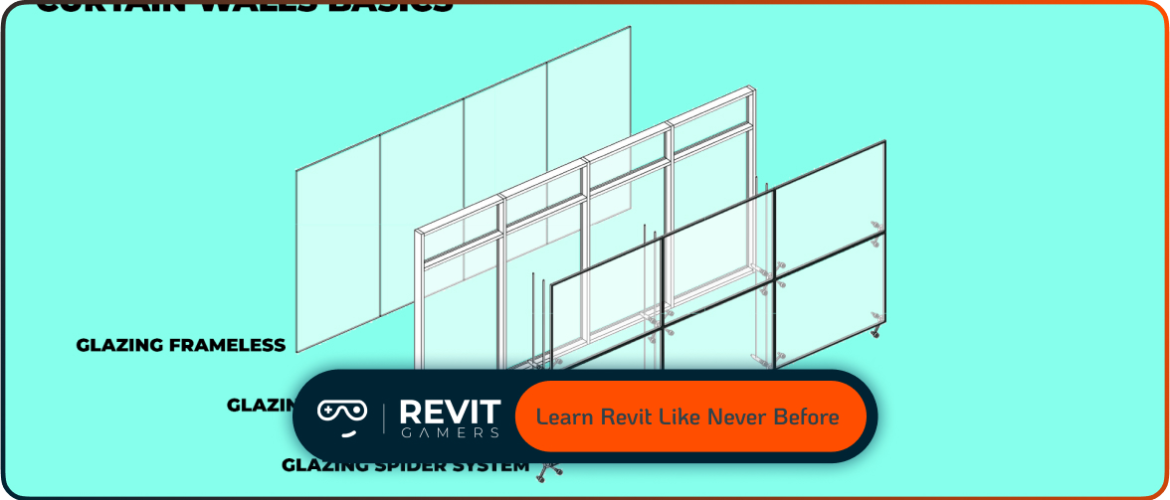
Mastering the ability to create family in Revit is one of the most important skills for anyone starting with Building Information Modeling (BIM). Families are the backbone of Revit projects, shaping how doors, windows, furniture, structural elements, and even annotation symbols behave. Without custom families, a project quickly becomes limited by out-of-the-box components, leading to repetitive designs and less efficient workflows.
For beginners, learning family creation means:
- Flexibility: You can model components to match exact project specifications.
- Consistency: Parameters ensure elements behave predictably across the model.
- Scalability: Families can be reused across multiple projects.
By the end of this guide, you will understand not only how to build a family but also how to plan, test, and optimize it for real-world use. This step-by-step approach keeps things simple while introducing enough technical depth to set a strong foundation for more advanced family design.
Learn more: Revit Families Not Loading? Solutions That Work
What Are Revit Families?

In Revit, a “family” is essentially a group of elements with a common set of properties and graphical representation. Understanding families is critical because every object in Revit—from walls and doors to lighting fixtures—belongs to a family.
There are three main categories:
- System Families: Built into Revit and cannot be created from scratch. Examples include walls, floors, ceilings, and roofs.
- Loadable (Component) Families: These are user-created or downloaded and can be customized. Furniture, windows, or mechanical equipment fall under this category.
- In-Place Families: Unique elements built directly within a project for highly specific or one-off needs.
For beginners, most learning revolves around loadable families, as they provide the flexibility to design custom components. Understanding these categories helps you decide when to create family in Revit from scratch, when to modify existing ones, and when to rely on in-place modeling for quick solutions.
Choosing the Right Family Template
Before starting to create family in Revit, you must choose the correct template. A template defines essential settings such as category, behavior, and hosting conditions. Using the wrong template may cause geometry to misbehave or parameters not to function properly.
Key points for template selection:
- Category relevance: For example, select a “Door” template for doors, not a generic model.
- Hosting requirements: Wall-based, ceiling-based, or free-standing.
- Discipline-specific needs: Architecture, Structural, or MEP templates have different built-in properties.
Common beginner templates include:
- Generic Model.rft: A flexible starting point for practice.
- Door.rft / Window.rft: Preconfigured for openings.
- Furniture.rft: Perfect for custom fixtures.
Pro tip: Spend time understanding categories since they determine how the family schedules, tags, and interacts with other project elements. Selecting the right template early saves significant rework and ensures smoother integration into your project environment.
Learn more: Top 5 revit beginner mistakes
Planning Before You Start
Jumping directly into geometry is tempting, but a successful family starts with careful planning. Before you create family in Revit, it’s vital to define what you want the component to do.
Steps to plan effectively:
- Sketch on paper: Draw the object and note down essential dimensions.
- Identify parameters: Decide which dimensions should be adjustable—width, height, depth, or material.
- Consider use cases: Will this family be used across multiple projects? Should it have several types (e.g., small, medium, large)?
- Establish constraints: Think about geometric rules (e.g., a table’s legs should always stay at corners).
Benefits of planning:
- Reduces trial-and-error inside the Family Editor.
- Ensures parametric relationships are logical.
- Provides clarity on whether to keep the design simple or add advanced features like visibility controls or nested components.
A well-planned family will be easier to build, test, and maintain.
Setting Up Reference Planes

Reference planes form the invisible skeleton of any family. When you create family in Revit, these planes act as guides for geometry and anchor points for parameters.
How to use them effectively:
- Add reference planes: Create vertical and horizontal planes for key dimensions.
- Name your planes: Clear naming (e.g., “Left,” “Right,” “Center”) avoids confusion in complex families.
- Apply dimensions: Add dimension lines between planes to control spacing.
- Assign parameters: Link dimensions to type or instance parameters for adjustability.
Best practices:
- Always place reference planes before creating geometry.
- Use symmetry by adding center planes for balance.
- Keep planes aligned with the intended insertion point (important for hosted families like doors or windows).
By setting up reference planes correctly, you create a flexible, parametric structure that ensures your geometry remains stable even when dimensions are changed later.
Learn more: How to Fix Revit File Corruption: Step-by-Step
Creating Geometry and Locking It
Once reference planes are in place, geometry can be added confidently. In the Family Editor, you can use solid forms (extrusions, blends, sweeps) or void forms (cutting out shapes).
Steps for geometry creation:
- Sketch profiles: Use 2D sketches as the basis for extrusions or blends.
- Align geometry: Use the Align tool to lock geometry edges to reference planes.
- Flex frequently: Adjust parameters after each step to confirm stability.
- Use voids wisely: Create openings or cutouts without overcomplicating the family.
Tips:
- Keep geometry lightweight; avoid unnecessary details that slow project performance.
- Use symbolic lines for 2D representation instead of modeling small details in 3D.
- Group related geometry logically to make editing easier later.
Locking geometry to reference planes ensures parametric reliability, preventing the family from breaking when parameters are adjusted in a project environment.
Adding Parameters and Constraints
Parameters give families their intelligence. When you create family in Revit, parameters define adjustability, behavior, and data tracking.
Types of parameters:
- Type Parameters: Affect all instances of a family type (e.g., door width).
- Instance Parameters: Unique to each placed element (e.g., material finish).
How to add parameters:
- Select a dimension or property.
- Click “Add Parameter.”
- Choose type or instance and assign it to a group (Dimensions, Materials, Identity Data).
Constraints strengthen geometry control:
- Equality constraints: Keep elements centered.
- Locked dimensions: Prevent accidental changes.
- Angle constraints: Fix geometry orientation.
Always “flex” your family—test parameter changes to ensure geometry behaves correctly. This process reveals issues early, making debugging easier before loading the family into a live project.
Learn more: Revit file too big: Why Is Your Revit File So Heavy? How to Optimize It
Working with Nested Families
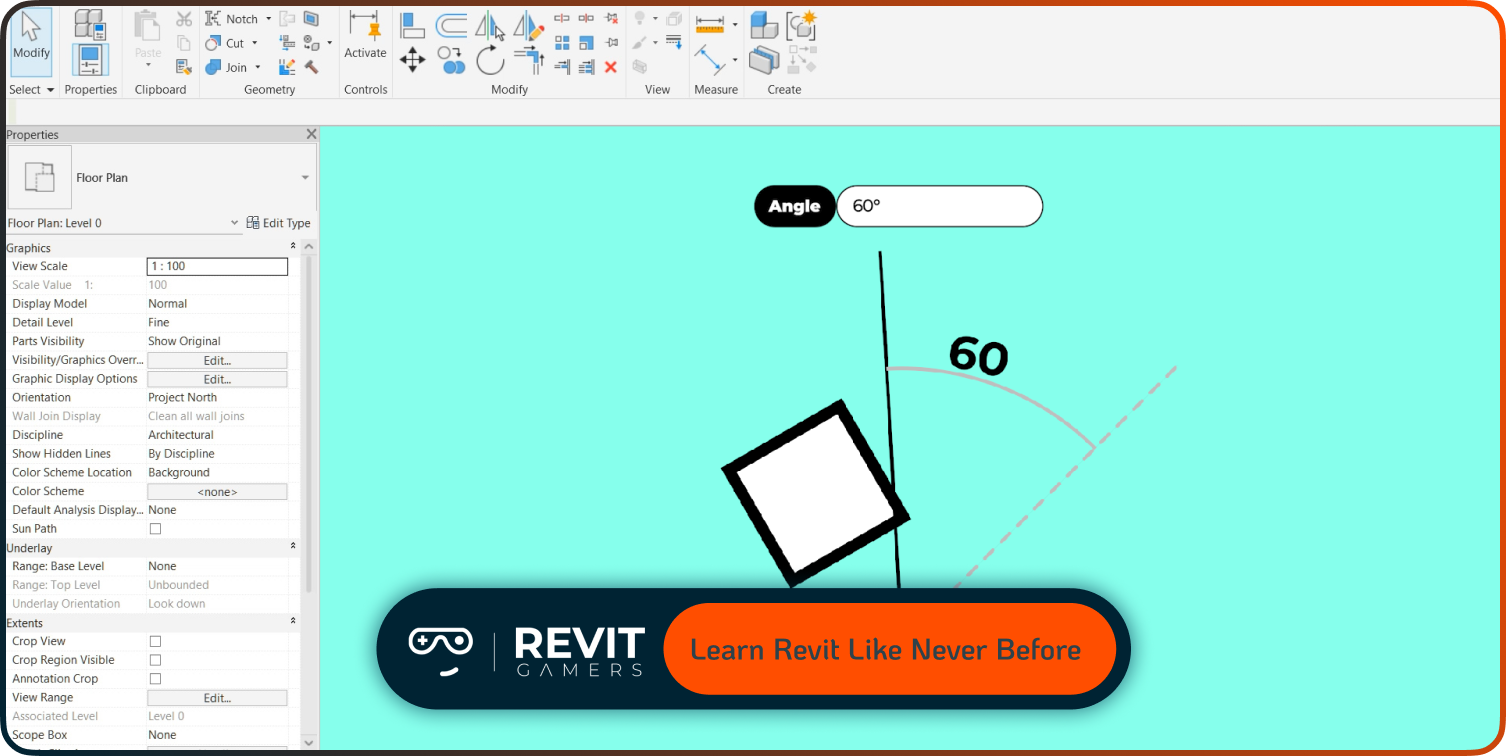
For more complex designs, nested families are essential. They allow you to insert one family inside another, increasing flexibility.
Benefits of nested families:
- Reusability: Use the same sub-component across multiple parent families.
- Simplification: Break down complex designs into smaller, manageable parts.
- Advanced control: Parameters in nested families can be linked to the host for synchronized behavior.
Examples:
- A chair with a separate cushion family.
- A window assembly with nested mullions and handles.
- MEP components with sub-parts like valves or connectors.
Best practices:
- Keep nested families lightweight to avoid bloating file size.
- Control visibility with parameters for optional parts.
- Always test the parent family after nesting to ensure proper parameter linking.
Using nested families gives you the power to design scalable, professional-grade components that adapt seamlessly to different project needs.
Finalizing and Loading into a Project
Once the family is complete, the next step is integration into a project.
Steps to finalize:
- Save the family: Use clear file names for version control.
- Create family types: Define standard variations (e.g., chair sizes or window styles).
- Test in a sandbox project: Insert the family into a blank project to evaluate performance.
- Check visibility settings: Ensure 2D and 3D representations are appropriate.
- Adjust insertion points: Verify that the family places correctly on host elements.
Troubleshooting tips:
- If geometry breaks, revisit reference planes and constraints.
- If parameters don’t flex, ensure they are linked correctly.
- If performance is slow, simplify unnecessary geometry.
Finalizing ensures that when you create family in Revit, it performs reliably in real-world projects, maintaining quality and efficiency.
Learn more: Trim, Split, Pin & Delete in Revit | Essential Modify Tools Explained Clearly
Best Practices and Pro Tips : Revit Family Creation
Creating families is as much about methodology as technical skill. Following best practices helps you avoid common pitfalls:
- Start simple: Build a basic version first, then add complexity.
- Maintain naming standards: Consistent parameter and file names improve collaboration.
- Balance detail with performance: Avoid modeling tiny screws or bolts; use symbolic lines or detail components.
- Document parameters: Keep notes inside the family for future editing.
- Study Autodesk samples: Explore out-of-the-box families to learn best practices.
- Flex constantly: Test parameters after each major step.
- Think long-term: Build families that can be reused across multiple projects.
By combining technical knowledge with disciplined habits, you’ll transform family creation from a beginner task into a professional-grade skill that significantly improves BIM efficiency.
Leave a Reply
You must be logged in to post a comment.