
News & Events
How to Render in Revit: A Complete Step-by-Step Guide
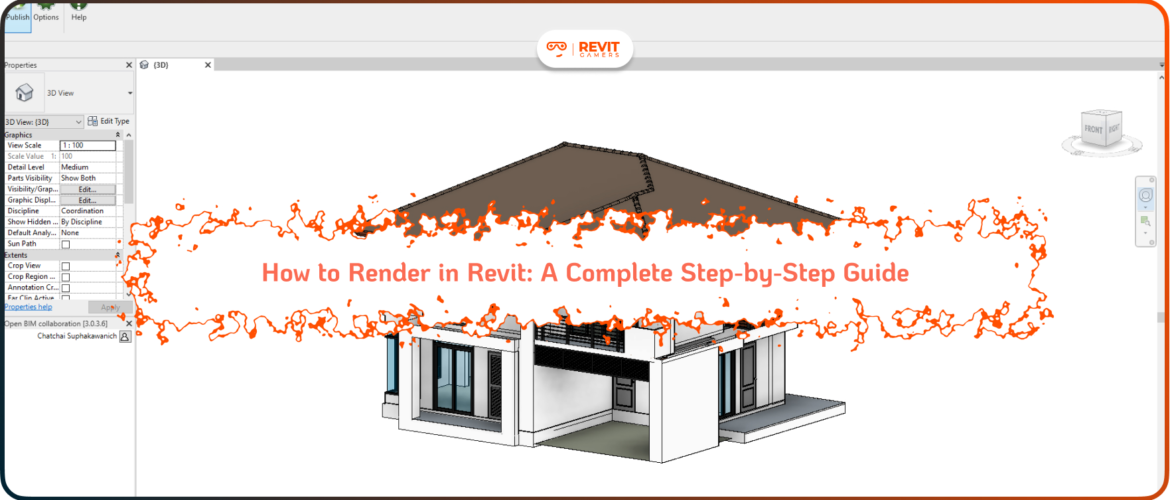
In architectural and engineering design, visuals communicate ideas more powerfully than technical drawings alone. Stakeholders, whether they are clients, contractors, or planning authorities, often respond best to realistic images that bring a project to life. This is where rendering becomes essential. Revit is not only a powerful Building Information Modeling (BIM) tool but also a platform with integrated rendering capabilities. Learning How to Render in Revit allows designers to transform 3D models into compelling visual presentations without needing to switch to external software.
Although specialized tools like 3ds Max or Lumion may offer advanced rendering options, Revit’s built-in engine provides a straightforward, accessible way to generate quality images. By mastering the rendering workflow inside Revit, teams can communicate intent more effectively, make better design decisions, and save valuable time in project delivery. This guide breaks down the rendering process step by step, covering preparation, materials, lighting, settings, and troubleshooting.
Learn more: How to Implement BIM with Revit: Complete Beginner Guide
Revit Gamers is offering
The most efficient
& market's only animated Revit training
Learn More
Understanding Revit’s Rendering Engine
Before learning how to render in Revit, it’s important to understand the rendering engine itself. Revit uses a built-in rendering system based on Autodesk Raytracer, which is designed to create realistic images directly from the BIM environment. Unlike external software, this renderer is fully integrated with Revit’s materials, lighting, and geometry, meaning there’s no need for complex file exports or conversions. However, the built-in engine has limitations. While it produces clean and convincing visuals, it may not achieve the photorealism of dedicated rendering tools such as V-Ray, Enscape, or Twinmotion.
Still, for many architects and engineers, Revit’s renderer strikes the right balance between speed and quality. It is particularly effective for design development, client updates, and technical presentations. Understanding what the engine can and cannot do helps set realistic expectations. It’s not about replacing high-end rendering software entirely—it’s about using Revit’s native capabilities strategically to enhance design communication.
Setting Up Your 3D Views for Rendering
A successful render in Revit starts with the right view setup. Knowing how to render in Revit means more than hitting the render button—it requires thoughtful preparation of perspectives and camera angles. First, create a 3D view dedicated to rendering, rather than using working views. This ensures that visibility, detail levels, and shadows are optimized for presentation.
Camera placement is crucial: choose angles that highlight spatial relationships, natural light entry, and important design features. Consider whether a perspective or orthographic view will better communicate the design intent. You should also fine-tune view settings such as detail level (medium or high), shadows, and realistic visual style before rendering. Adjusting section boxes can help focus on specific areas of a project while avoiding unnecessary geometry. Ultimately, proper view setup ensures that the rendering process delivers not just a picture, but a meaningful visual story that supports the project’s narrative.
Learn more: Revit file too big: Why Is Your Revit File So Heavy? How to Optimize It
Applying Materials and Textures
One of the most important steps in learning how to render in Revit is mastering materials and textures. Rendering quality depends heavily on the realism of surfaces. Revit provides a comprehensive material editor where users can assign finishes to walls, floors, roofs, and furniture. These materials include both physical properties—such as thermal performance—and visual properties, like texture, color, and reflectivity. For realistic results, carefully select materials from Revit’s library or create custom ones.
Pay attention to mapping scales to ensure brickwork, tiles, or wood grains appear natural in rendered views. Reflective surfaces like glass and metals should be balanced with diffuse textures to avoid unrealistic glare. Consistency across elements is key, as mismatched or overly generic textures can make renders look artificial. Properly applied materials not only enhance realism but also help clients visualize the actual look and feel of a space, bridging the gap between technical models and emotional impact.
Revit Gamers is offering
The most efficient
& market's only animated Revit training
Learn More
Lighting Setup in Revit
Lighting can make or break a render, and understanding how to render in Revit means learning to balance light sources effectively. Revit supports both natural and artificial lighting, giving flexibility for different design contexts. Natural daylight is controlled by geographic location, project orientation, and time of day, allowing realistic solar studies. Artificial lights, such as ceiling fixtures or lamps, can be placed within the model and adjusted for intensity, color temperature, and distribution. For balanced results, combine both natural and artificial sources to create depth and atmosphere.
Overly bright or poorly distributed lighting often leads to flat, unrealistic images. Exposure settings within the render dialog allow fine-tuning of brightness and contrast. For exterior renders, ensuring accurate sun positioning is critical, while interior renders benefit from layered lighting setups that mimic real-world conditions. Proper lighting not only improves realism but also communicates mood, functionality, and spatial quality effectively.
Learn more: Reset Revit UI: Bring Back Your Lost Panels Easily
Adjusting Rendering Quality Settings
Knowing how to render in Revit also means understanding the different quality settings available. Revit provides options such as Draft, Medium, High, and Best. Draft mode is useful for quick tests, allowing you to check composition, lighting, and materials without long rendering times. Medium and High settings strike a balance between quality and efficiency, producing images suitable for internal reviews or design development. Best setting, while time-consuming, generates high-resolution visuals appropriate for client presentations or marketing materials. Choosing the right setting depends on purpose and available time.
For instance, during iterative design, Draft and Medium may be sufficient. For final submissions, High or Best should be used. Keep in mind that higher quality settings require more processing power and may slow down workstations. Efficient use of settings ensures teams can refine visuals throughout design stages without compromising workflow speed or presentation quality.
Rendering Workflow: Step by Step
Once views, materials, and lighting are ready, it’s time to walk through the actual rendering workflow. Learning how to render in Revit involves a systematic process. First, open the prepared 3D view and select “Render” from the View Control Bar. Next, adjust render settings: choose output size, quality level, and lighting schemes. Revit allows you to render with sun only, artificial lights only, or a combination.
Once settings are finalized, start the render. Depending on complexity and quality level, rendering may take anywhere from a few seconds to several hours. After completion, the image can be saved as a project view or exported as an external file (JPEG, TIFF, or PNG). For presentations, higher resolution exports are recommended. Additionally, post-processing tools inside Revit allow adjustments to exposure, highlights, and shadows without restarting the entire render. Following these steps ensures an efficient, repeatable workflow for producing clear visual outputs.
Common Rendering Issues and Fixes
Even with preparation, rendering in Revit often presents challenges. Anyone learning how to render in Revit should be aware of common issues. Blurry textures usually occur when material mapping scales are set incorrectly. Fixing this requires adjusting texture alignment and resolution in the material editor. Overexposed or underexposed images are often caused by imbalanced lighting setups; adjusting artificial light intensity or exposure controls can resolve this. Another frequent issue is excessive rendering time.
This can be mitigated by reducing unnecessary geometry, cleaning linked CAD files, and choosing lower quality settings for test renders. Performance lags may also result from outdated hardware or insufficient memory, requiring optimized system resources. Lastly, flat-looking images often come from a lack of contrast or poor camera composition. Adding layered lighting and refining view angles usually enhances depth. By recognizing and troubleshooting these issues early, designers can maintain efficient workflows and achieve professional-quality results consistently.
Learn more: Master Revit’s Essential Drawing Tools: Walls, Floors, and More | Step-by-Step Guide
Conclusion: Smarter Rendering for Better Design Communication
Mastering how to render in Revit goes beyond technical know-how—it’s about using visualization strategically to communicate design intent. Rendering is not just an aesthetic exercise; it shapes client perception, clarifies design decisions, and enhances collaboration across project teams. By preparing clean views, applying realistic materials, balancing lighting, and choosing the right quality settings, designers can transform their BIM models into persuasive visuals.
The ability to troubleshoot common rendering issues ensures smoother workflows and higher efficiency. Importantly, rendering should be approached with purpose: quick drafts for internal iterations, high-quality images for client engagement, and targeted visuals for stakeholder approval. In the bigger picture, smart rendering practices save time, reduce miscommunication, and create stronger emotional connections with design concepts. Revit may not replace high-end rendering software, but used wisely, it empowers architects and engineers to deliver impactful, visually compelling projects directly from their BIM environment.