
News & Events
change units in Revit: How to Change Project Units for International Projects
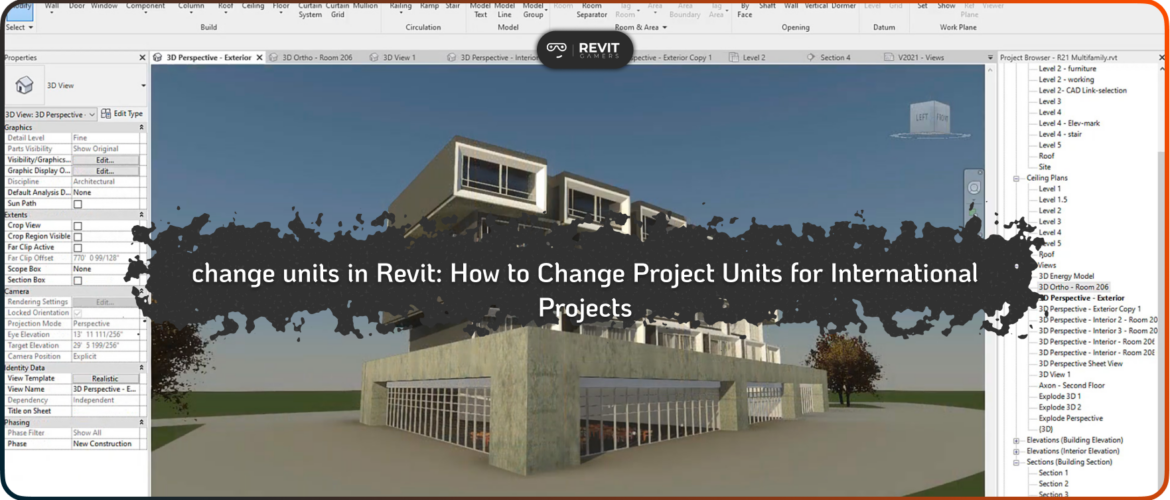
change units in Revit: In today’s construction industry, many projects are delivered by multinational teams. Architects, engineers, and contractors often collaborate across borders, which means consistency in measurement systems is critical. If one team works in metric while another uses imperial, errors can easily occur, leading to design conflicts, construction mistakes, or costly rework. That is why knowing how to change units in Revit is essential for professionals working on international projects.
Revit provides powerful flexibility to switch between units for length, area, volume, and more. Understanding these settings ensures that everyone on the team speaks the same “measurement language.” For new users, unit adjustments may seem like a minor setup task, but in practice, they determine how dimensions, annotations, and quantities are displayed. Setting units correctly at the start of a project avoids confusion and creates consistency across drawings and schedules. Ultimately, mastering unit management in Revit supports accuracy, efficiency, and better collaboration in global projects.
Learn more: Top 5 revit beginner mistakes
Revit Gamers is offering
The most efficient
& market's only animated Revit training
Learn More
Default Units in Revit and Their Limitations
When starting a new project in Revit, the software automatically applies default units based on the chosen template. For example, a metric template sets millimeters as the standard for length, while an imperial template sets feet and inches. While these defaults may work for local projects, they often become problematic when collaborating internationally. Imagine a European architect designing in millimeters while a U.S. contractor interprets the same drawings in feet; the mismatch could cause serious alignment issues on site.
This is why relying solely on default units is risky. Although Revit’s templates provide a starting point, they cannot account for the specific requirements of every project. Teams working with international clients, manufacturers, or consultants must customize units to ensure alignment. By learning to change units in Revit, professionals can adapt quickly to project demands, eliminating confusion and reducing mistakes caused by misinterpreted dimensions. In global projects, default units are rarely enough.
Accessing the Project Units Dialog
The first step to adjusting measurements is knowing where to find unit settings. In Revit, all changes happen through the Project Units dialog. To access it, navigate to the Manage tab on the ribbon, then click on Project Units. This opens a dialog box where you can control units for length, area, volume, slope, currency, and more. Each category has customizable fields, allowing you to define the display format, rounding preferences, and unit symbols.
For example, you can choose to show length in meters with two decimal places or feet with fractional precision. The dialog also provides consistency by allowing modifications across all categories in a single interface. Once adjustments are made, Revit automatically updates dimensions and annotations throughout the project. This centralized system ensures that changes are applied universally, avoiding manual edits. Accessing this dialog is a simple but essential step, and mastering it makes the process of learning to change units in Revit much smoother.
Learn more: Revit Architecture Crash Course
How to Change Units in Revit for Length, Area, and Volume
The most common adjustments in Revit involve length, area, and volume—core measurements in every project. To change units in Revit for length, open the Project Units dialog and select “Length.” From here, you can switch between millimeters, centimeters, meters, feet, or inches. You can also set rounding options, like displaying results to the nearest whole number or with decimal precision.
For area, Revit allows changes to square meters, square feet, or other regional standards. Similarly, volume can be displayed in cubic meters or cubic feet, depending on project needs. Each change is instantly reflected in dimensions, schedules, and tags, ensuring consistency across the model. A key tip is to set these units before beginning detailed modeling to avoid confusion later. However, if changes are necessary mid-project, Revit will still update all elements accordingly. This flexibility makes it easy to adapt documentation to client or contractor preferences without compromising accuracy.
Adjusting Units for Structural and MEP Disciplines
Different disciplines often require different levels of precision in their models. Structural engineers, for example, may need millimeters or fractional inches for reinforcement placement, while MEP engineers might prefer meters or feet for ductwork and piping. Revit allows you to change units in Revit at both project and view levels, which gives flexibility to address these needs. In the Project Units dialog, structural categories like rebar spacing or beam dimensions can be fine-tuned with high precision.
For MEP, units for flow rates, pressure, or electrical loads can be customized as well. This ensures that calculations remain accurate while documentation stays clear for each discipline. A common best practice is for project managers to set global units at the project level, while discipline-specific adjustments are made at the view or schedule level. This layered approach keeps the overall project consistent while respecting the detailed requirements of specialized teams.
Working with Mixed Units in International Teams
One of the biggest challenges in global projects is dealing with mixed units. A U.S.-based contractor may work in feet, while a European supplier prefers millimeters. Instead of forcing one system, Revit supports flexible unit management. By learning to change units in Revit, teams can adapt project settings to local preferences while maintaining overall consistency. For example, a structural engineer may model in millimeters for accuracy, but schedules exported to a U.S.
contractor can display in feet. Similarly, material takeoffs can be set to show cubic meters or cubic yards, depending on the audience. The ability to customize per view or per schedule is especially useful in these scenarios. However, project leaders must ensure that all collaborators agree on a standard baseline to avoid mistakes. Clear documentation of unit settings in BIM execution plans is critical. When managed properly, mixed units become a strength rather than a source of errors.
Learn more: Revit Families Not Loading? Solutions That Work
Revit Gamers is offering
The most efficient
& market's only animated Revit training
Learn More
Best Practices for Dimensioning and Annotation After Changing Units
Changing project units is only the first step; ensuring that annotations and dimensions remain clear is just as important. After you change units in Revit, review dimension styles to confirm they match the new system. For instance, switching from millimeters to feet may require adjusting text size, rounding, and precision settings to maintain readability. Tags and symbols should also be checked to ensure that they display consistent units across sheets.
It’s a good practice to create dimension styles tailored to specific project standards, such as one for site drawings and another for detail drawings. This avoids confusion when documents are issued to different stakeholders. Consistency in annotation builds trust with clients and contractors, showing professionalism in documentation. Finally, teams should test outputs by printing sample sheets after unit changes. This proactive step ensures that design intent is communicated clearly and that no discrepancies slip through to construction documents.
Customizing Unit Settings for Specific Standards
Every region has its own construction standards, and Revit’s flexibility makes it possible to align projects accordingly. For example, the United States often uses imperial standards, while most of Europe, Asia, and Africa rely on metric. By using the Project Units dialog, teams can change units in Revit to meet local code requirements.
Beyond basic switches, Revit also allows customization of symbols and formatting, ensuring compliance with regional drafting standards. For example, engineers may prefer meters with three decimal places for site plans, while interior designers may opt for millimeters for detailing. Revit also allows the creation of templates with pre-set units, so teams can standardize practices across multiple projects. This not only saves time but also ensures consistency and compliance with client expectations. Ultimately, customizing units is more than a technical adjustment—it is about aligning the model with international best practices and regional building codes.
Learn more: Animated Revit Training That Actually Makes Sense | Learn Revit the Fun Way
Conclusion: Building Consistency Across Global Projects
In the world of BIM, unit management is more than a technical detail—it is a cornerstone of collaboration. Knowing how to change units in Revit ensures that international teams can work together without confusion or costly mistakes. From adjusting lengths and areas to managing specialized requirements in structural and MEP disciplines, unit control touches every part of a project.
Best practices include setting units early, documenting choices in execution plans, and reviewing annotations for consistency. The ability to customize settings for regional standards makes Revit a flexible platform for global use. As projects continue to span borders and involve diverse teams, mastering units is a critical skill for architects, engineers, and contractors alike. By managing units effectively, professionals not only improve accuracy but also strengthen communication and trust across international collaborations. Ultimately, consistent unit management supports the successful delivery of projects on time and to specification.